

WordPress import
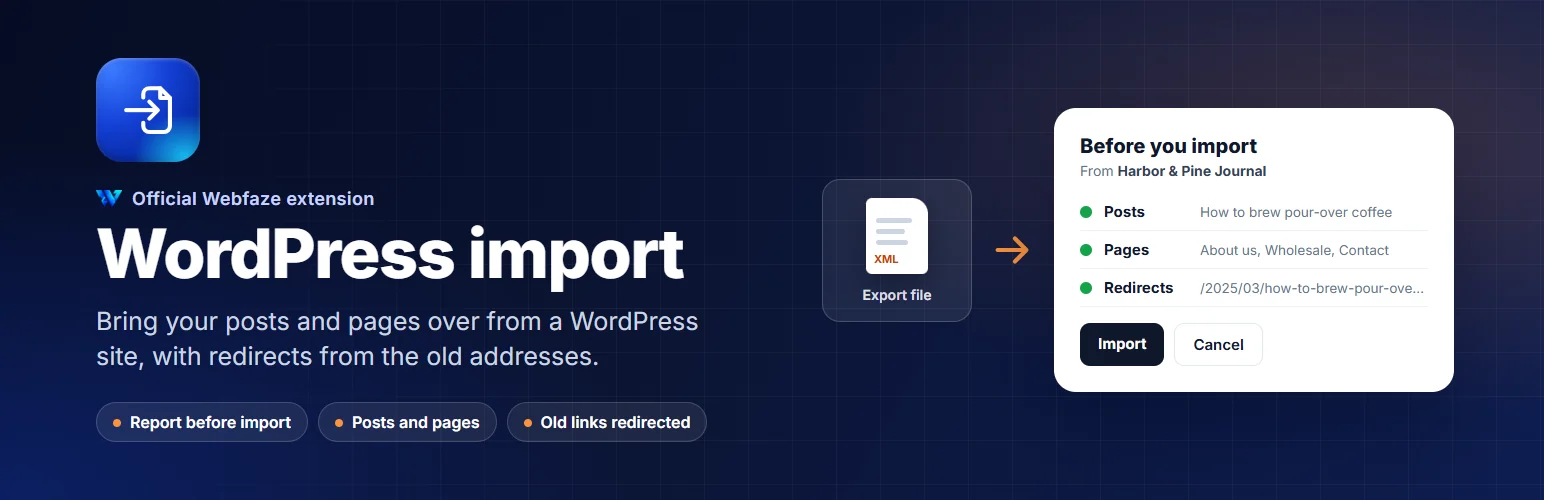
Move your posts and pages from a WordPress site to Webfaze. See a report first, then import. Old links keep working.
FAQ
Does it change my WordPress site?
No. It only reads the export file you downloaded. Your WordPress site stays exactly as it is.
Can I run it twice?
Yes, but every import adds new copies. A post that is already on your site gets a second copy, with -2 added to its address. Import each file once, or delete the extra copies afterwards.
What happens to my images?
They stay on your old WordPress site and keep showing as long as that site is online. Upload them to Media and put them in your posts before you close the old site. The report tells you how many images point at the old site.
My export file is larger than 20 MB. What can I do?
In WordPress, export posts and pages separately, or a few months at a time, and import each file.
Can I undo an import?
Imported posts and pages are normal posts and pages. Move the ones you do not want to the Trash.
Installation
Install it from Extensions, Add new. A WordPress import entry appears in the Console menu under Manage. Only owners and administrators see it.
In WordPress, go to Tools, Export, choose All content and download the file. Then open WordPress import in Webfaze, upload the file, read the report and press Import.
Install on your Webfaze site
- Open your Webfaze admin and go to Extensions, then Add new.
- Search for wordpress-import and press Install.
- Check the permissions screen, then switch it on.
Webfaze checks the directory’s signature on the package before installing it.